What you learned:
Use the DocReader
This is a printable summary
Open a document

Open a document in the DocReader for support accessing text:
- Open your file explorer and navigate to the document you want to open. The file must be a PDF or DOCX file type.
Use the DocReader

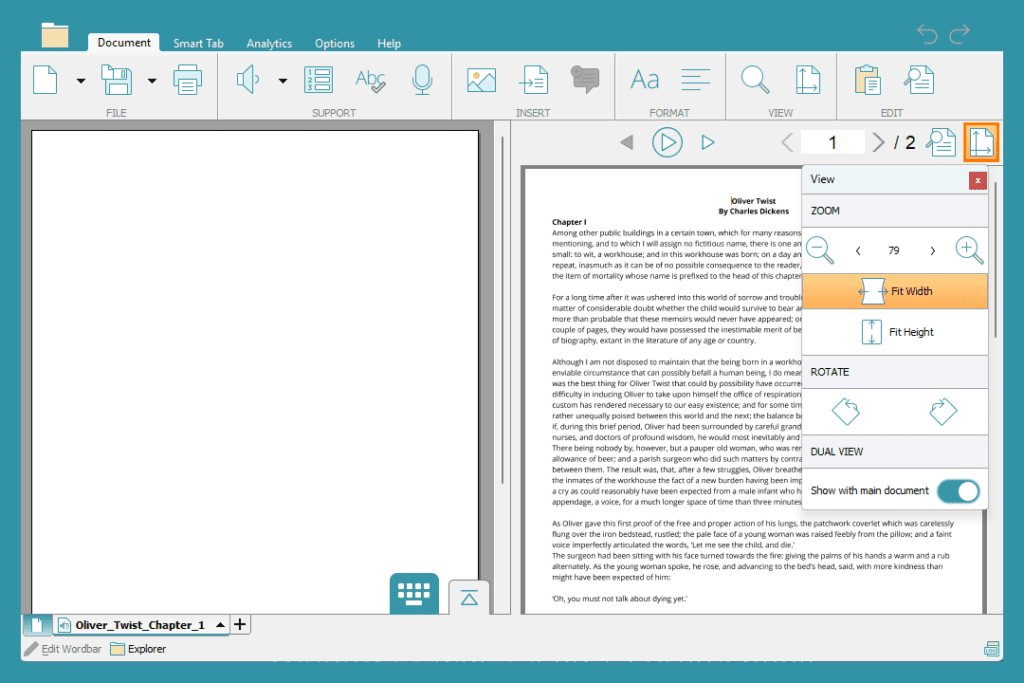
Navigate the document in the DocReader and use speech to hear the text:
- Highlight a section of text and click
 to hear it.
 - Click where you want the DocReader to start reading and then click .
- Click to stop the speech.
- Listen to one word at a time by using the previous and next arrows .
- Use the arrows in the top-right of the screen or scroll to move between pages.
- Click to open your page view options.
- Toggle on Dual View to view both the DocReader and the Document at the same time. Toggle it off to return to the full-page view.
- Zoom in or out on the page with .
- If using an editable PDF, click the editable text boxes to type. Click to access the Predictor.
- Click in the Smart Tab ribbon to save changes to an editable PDF.
 to hear it.
 to stop the speech.
 .
. or scroll to move between pages.
 to open your page view options.
 .
. to access the Predictor.
 in the Smart Tab ribbon to save changes to an editable PDF.