What you learned: Printable Summary
Clicker Apps settings
Clicker Writer
General

Adjust the General settings to change general Clicker Writer app settings:
- Select
 to open the App Settings. It will open the General page:
- Select Font to change the default font style and size.
- Select Font Colour to change the default font colour in the document.
- Select Background Colour to change the default background colour of the document.
These changes will affect any new Document you create. - Select On-screen Keyboard to change the layout of the on-screen keyboard.
- Select Font Size to change the size of the font in a Clicker Set.
- Choose from the language settings for different regional options.
- Select Restore Defaults at the bottom of the window at any point to restore the default App Settings.
- Select in the lower Toolbar to change text formatting options in the document you currently have open.
 to open the App Settings. It will open the General page:
 in the lower Toolbar to change text formatting options in the document you currently have open.
Speech


Adjust the speech settings to change the voice and when Clicker speaks:
- Select and choose Speech:
- Adjust the slider to change the speed of the voice.
- Select Highlight Colour to change how text is highlighted when it’s read out.
- Open the Voice drop-down box to change the voice Clicker uses.
A prompt will appear if we recommend using a higher quality voice. - Select Add from the drop-down menu to download more voices.
- Choose Listen to hear a sample of the voice.
- Use the Speak As You Write switches to change when Clicker Speaks.
- Choose whether Clicker Sets and Suggestions are read aloud on right-click.
Tools & Controls

Adjust the Tools & Controls settings to change which tools are available:
- Select and choose Tools & Controls:
- Use the Tools switches to change which tools are offered to learners. This changes whether learners can access the Predictor, Dictation, Voice Notes, and text formatting options.
- Choose whether clicks or taps are displayed on the screen.
Suggestions
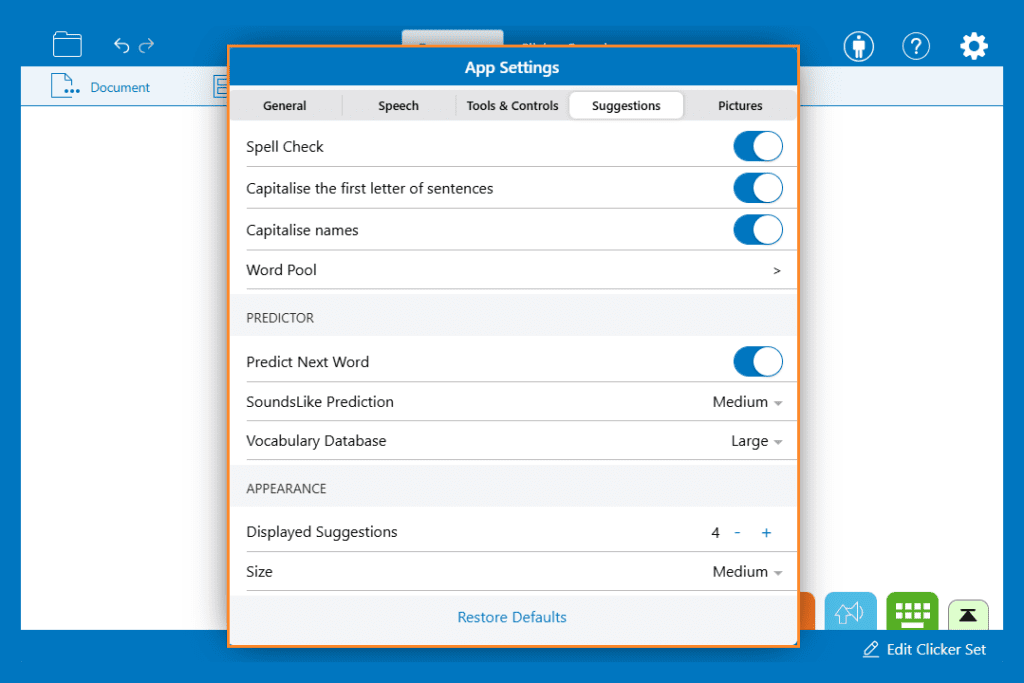
Adjust the Suggestions settings to change the level of support provided by the Predictor and Spell Check:
- Select and choose Suggestions:
- Use the Spell Check switch to choose whether Spell Check is turned on or off.
- Turn automatic capitalisation for first letters of sentences or names on or off with the switches.
- In Word Pool, add words to include them in the suggestions. Add in common misspellings and change the pronunciation of words.
- Use the Predict Next Word switch to change whether the Predictor offers words before any letters are typed in the document.
- Use the SoundsLike Prediction drop-down box to change the priority given to phonetic spellings of words.
- Use the Vocabulary Database drop-down box to change the size of the database the Predictor uses for vocabulary.
- Change the number of words offered by the Predictor and Spell Check.
- Use the Size drop-down box to change the size the Predictor and Spell Check are displayed on the screen.
Pictures
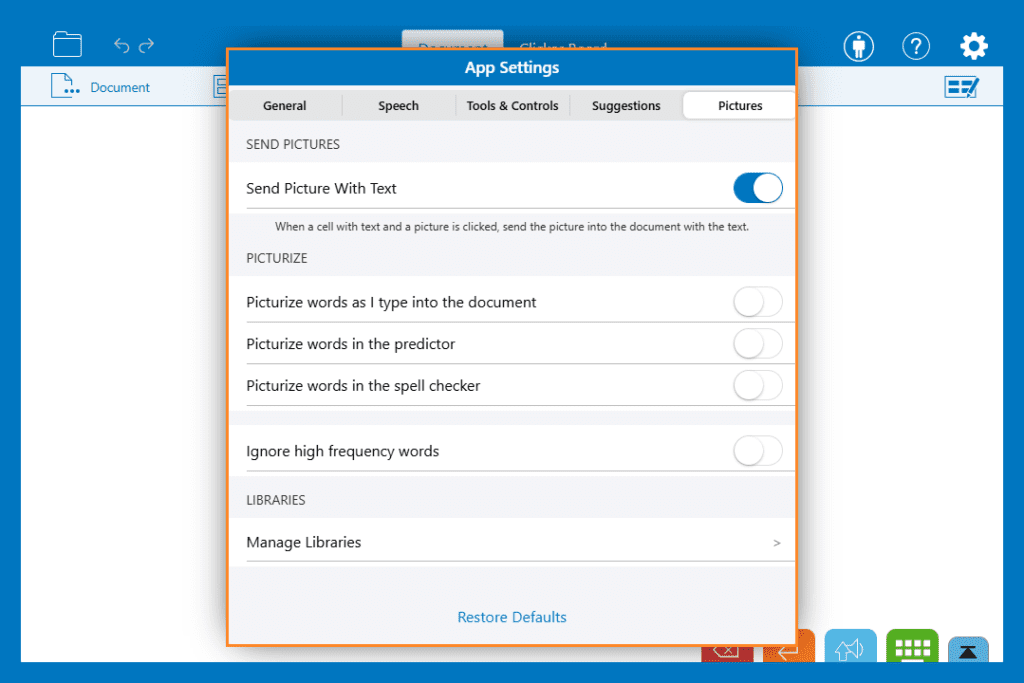
Adjust the pictures settings to change the picture support offered in Clicker:
- Select and choose Pictures.
- Use the Send Picture with Text switch to change whether images in cells are sent into the Document.
- In Picturize, choose whether pictures appear:
- In the Document
- In the Predictor
- In the Spell Check
- Choose if you want to ignore high frequency words.

- Choose which Picture Libraries are preferred when using Picturize.
- Select Manage Libraries to see which Libraries are included in your subscription.
- Download or Remove the CrickPix picture library or Widgit Symbols from your device.
Clicker Books
General
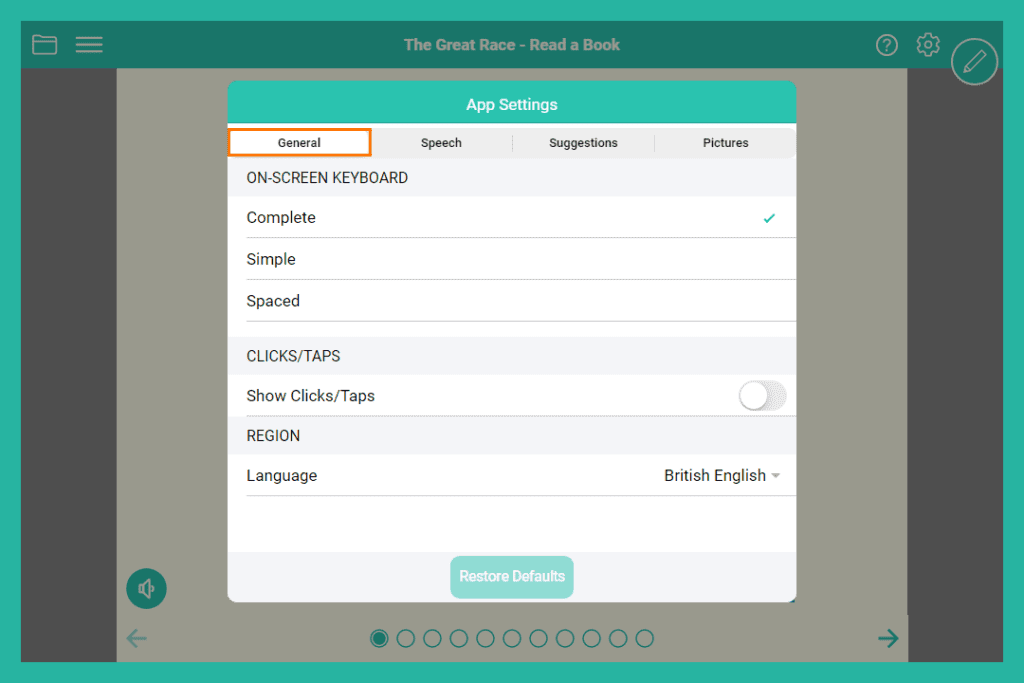
Adjust the General settings to change general Clicker Books settings:
- Select to open the App Settings. It will open the ‘General’ page:
- Choose from the on-screen keyboard options to change the layout of the on-screen keyboard.
- Choose whether clicks or taps are displayed on the screen.
- Choose from the language settings for different regional options.
- Select ‘Restore Defaults’ at the bottom of the window at any point to Restore the default App Settings.
 to open the App Settings. It will open the ‘General’ page:
Speech

Adjust the Speech settings to change the voice and when Clicker speaks:
- Select and choose ‘Speech’:
- Adjust the slider to change the speed of the voice.
- Change the ‘Highlight’ colour to change how text is highlighted when it’s read out.
- Select the Voice drop-down list to change the voice Clicker uses.
- Select ‘Download Voices’ to download more voices to use.
- Turn the switches on or off to change when Clicker Speaks.
Suggestions

Adjust the Suggestions settings to change the level of support provided by the Predictor and Spell Check:
- Select and choose ‘Suggestions’:
- Change the number of words offered by the Predictor and Spell Check.
- Use the ‘Size’ drop-down list to change the size the Predictor and Spell Check are displayed on the screen.
- Use the ‘Spell Check’ switch to choose whether Spell Check is turned on or off.
- Use the ‘Predictor Tool’ switch to choose whether the Predictor is available.
- Use the ‘Predict Next Word’ switch to change whether the Predictor offers words before any letters are typed.
- Use the SoundsLike Prediction drop-down list to change the priority given to phonetic spellings of words.
- Use the Vocabulary Database drop-down list to change the size of the database the Predictor uses.
Pictures
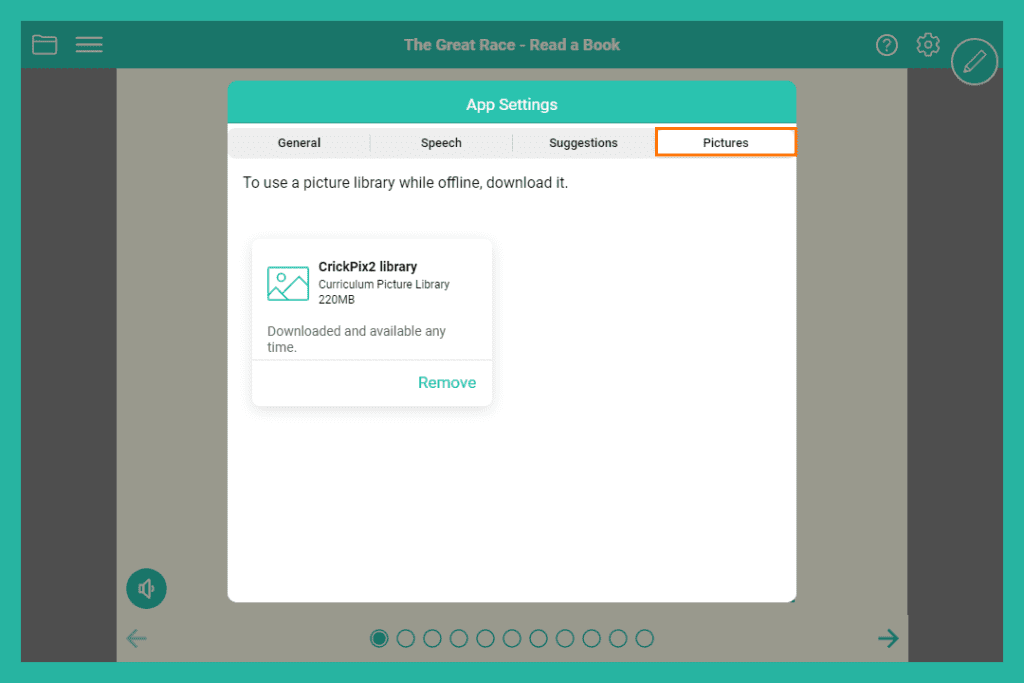
Adjust the Pictures settings to choose whether picture libraries are saved on your device:
- Select and choose ‘Pictures’:
- ‘Download’ or ‘Remove’ the CrickPix2 picture library from your device.
Page Settings
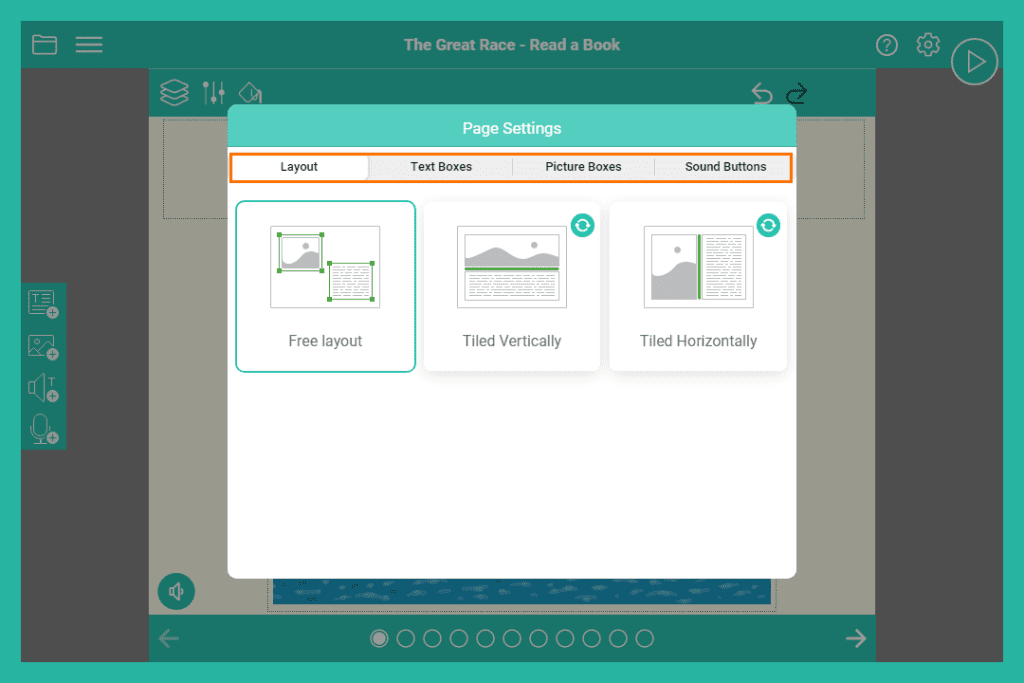
Adjust the ‘Page Settings’ to change the page layout and Page Object settings:
- If not already in Edit View, go here to open Edit View.
- Go to to open the Page Settings window:
- Go to ‘Layout’ to change the page layout.
- Go to ‘Textboxes’ to lock the textboxes Page Object.
- Go to ‘Picture Boxes’ to lock the picture boxes Page Object and change the tools that are available for adding pictures to a page.
- Go to ‘Sound Boxes’ to lock Read buttons and Record & Play buttons.
- When a Page Object is locked:
- It cannot be edited.
- No further instances of that Page Object can be added to the page.
 to open Edit View.
 to open the Page Settings window:
Clicker Talk
General

Adjust the General settings to change general Clicker Talk settings:
- Select to open the App Settings. It will open the General page:
- Choose whether the Toolbar at the top of the screen is hidden when not in use.
- Choose whether clicks or taps are displayed on the screen.
- Choose from the language settings for different regional options.
- Select Restore Defaults at the bottom of the window to Restore the default App Settings.
 to open the App Settings. It will open the General page:
Speech
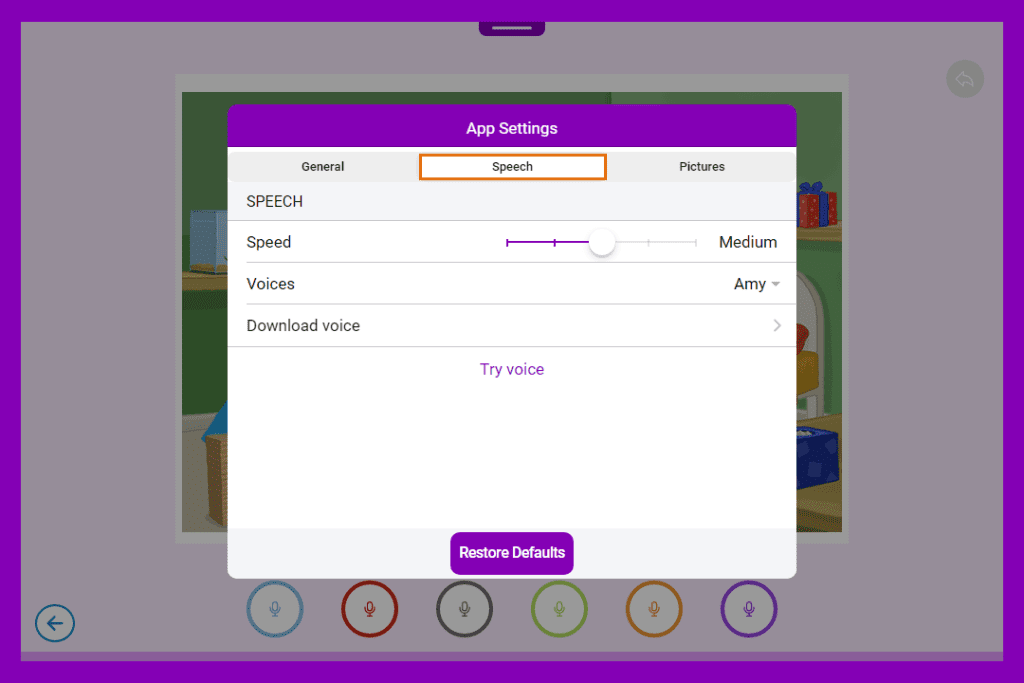
Adjust the Speech settings to change the voice and when Clicker speaks:
- Select and choose Speech:
- Adjust the slider to change the speed of the voice.
- Select the Voice drop-down list to change the voice Clicker uses.
- Select Download Voices to download more voices to use.
- Use Try Voice to hear a sample of the currently selected voice.
Pictures

Adjust the Pictures settings to choose whether picture libraries are saved on your device:
- Select and choose Pictures:
- Download or Remove the CrickPix2 picture library from your device.