What you learned: Printable Summary

Picturize your document
Automatically add pictures to words in your document:
- Go to the Document ribbon and click
 .
. - Choose the image library you want to Picturize with.
- Choose whether to ignore high frequency words.
- Click Picturize.
 .
.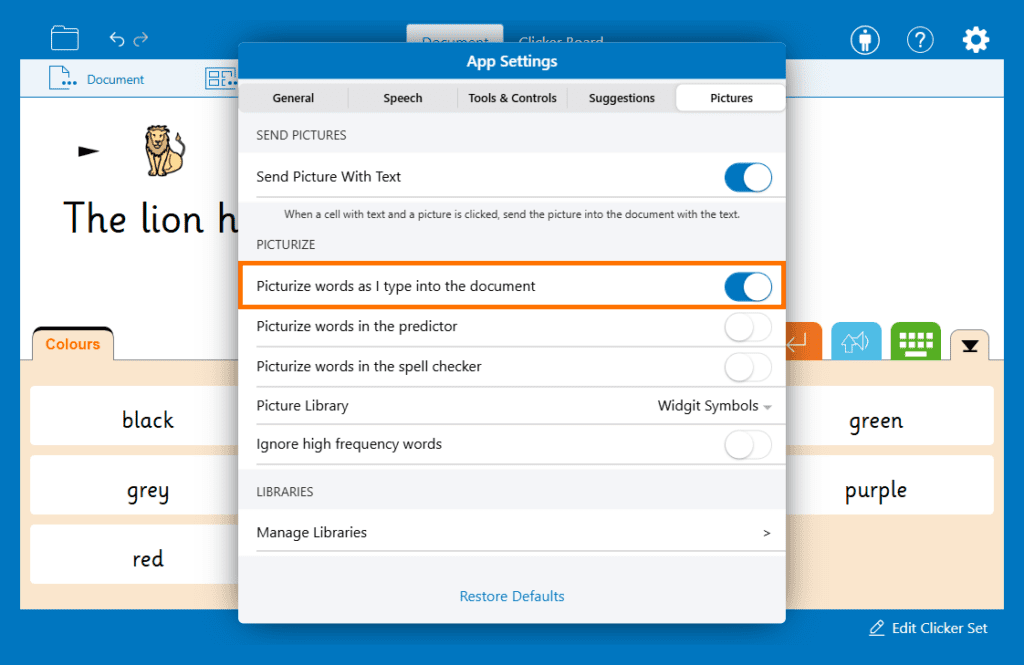
Picturize the document as you type
Automatically add pictures to words as you type them into your document:
- Go to the Settings cog .
- Select the ‘Pictures’ tab.
- Turn on ‘Add Picturize as I type into the Document’.
- Choose your Picture Library and choose if you want to add or ignore high frequency words.
- Tap away from the App Settings to return to your document.
 .
.
Picturize suggestions
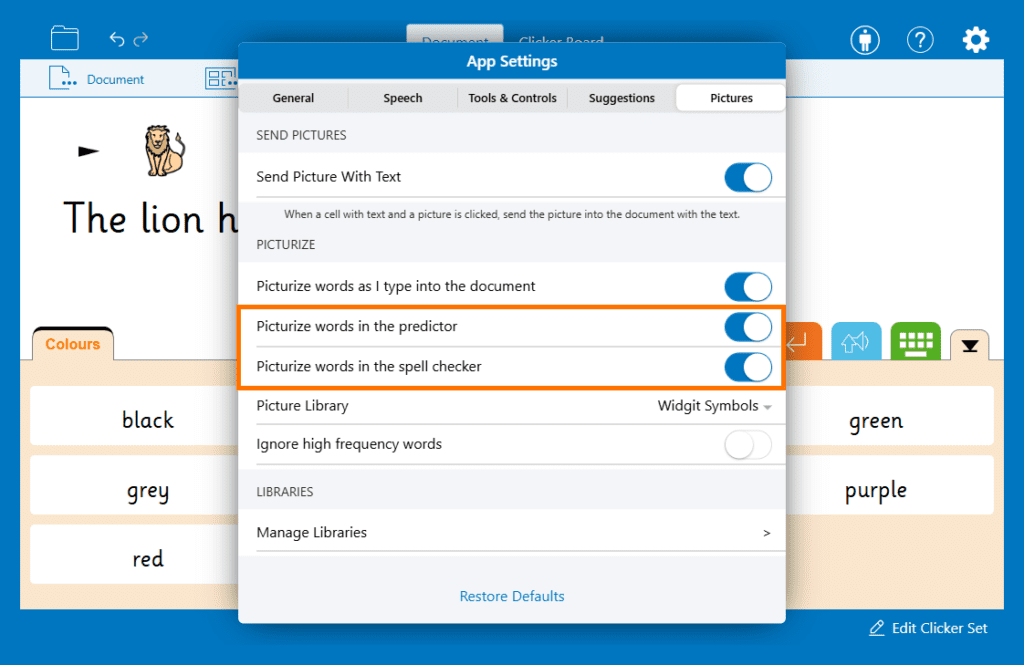
Picturize your Predictor and Spell Check suggestions:
- Go to the Settings cog .
- Select the ‘Pictures’ tab.
- Turn on ‘Picturize words in the Predictor’ and ‘Picturize words in the Spell Checker’.
- Choose your Picture Library and choose if you want to add or ignore high frequency words.
- Tap away from the App Settings to return to your document.