What you learned: Printable Summary

Browse for a picture
Use the CrickPix2 library of images or search through pictures saved on your computer:
- Go to the Document ribbon and click
 .
. - Choose Browse… from the menu.
- Navigate the Explorer to find the picture you want to use.
 .
.
Draw a picture
Use the paint tool to create your own picture:
- Go to the Document ribbon and click .
- Choose Paint… from the menu.
- Use the tools provided to draw your picture.
Take a photo
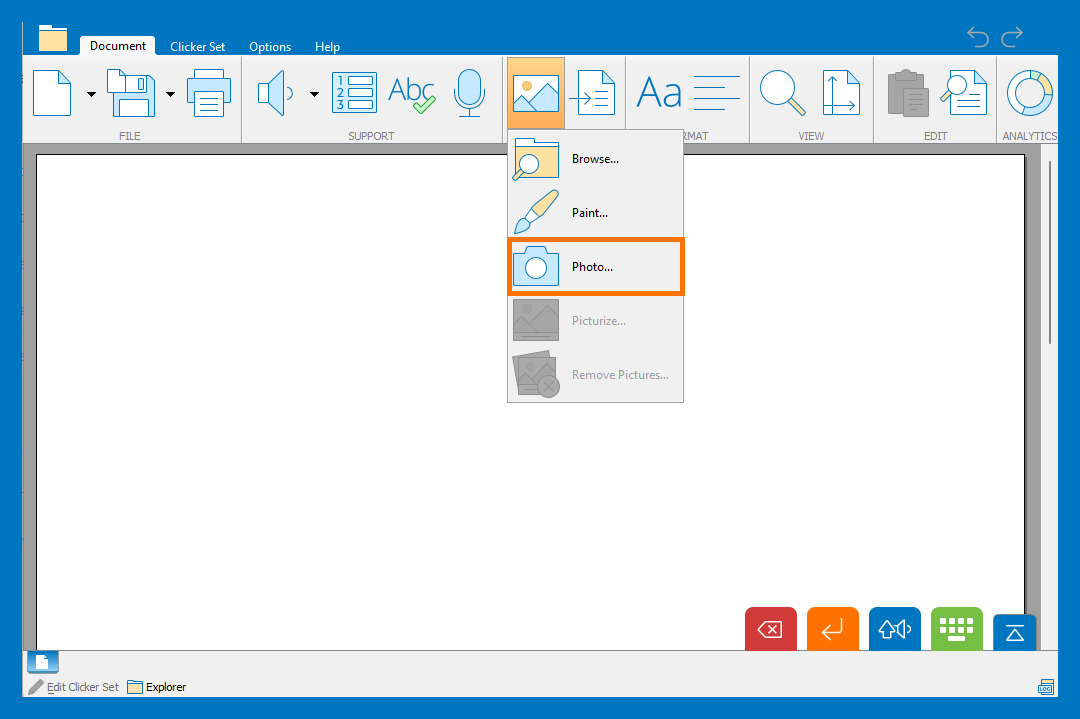
Use a webcam to take a photo:
- Go to the Document ribbon and click .
- Choose Photo… from the menu.
- Click to take a photo.
 to take a photo.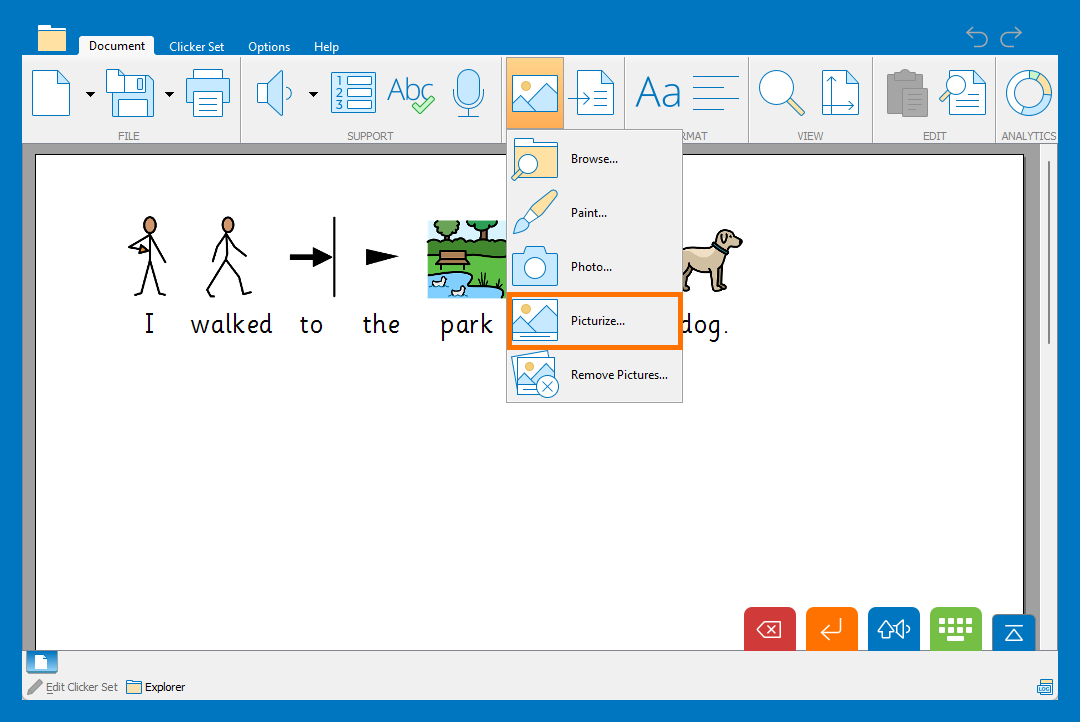
Picturize your document
Add pictures to words in your document:
- Go to the Document ribbon and click .
- Choose Picturize… from the menu.
- Choose whether to ignore high frequency words.
- Click Picturize.
Picturize the document as you type
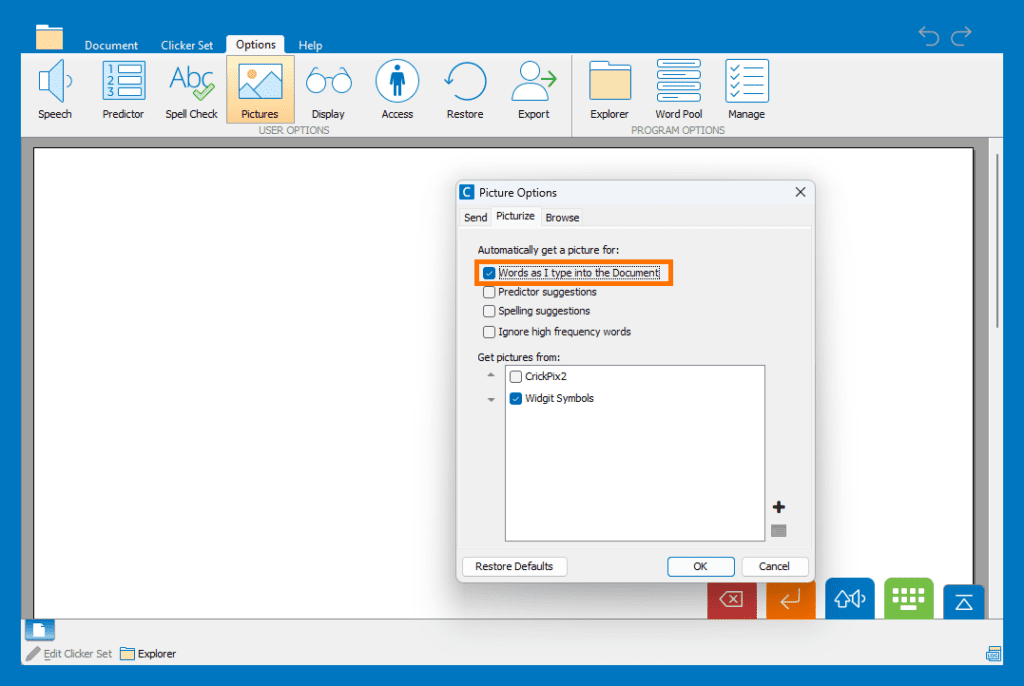
Automatically add pictures to words as you type them into your document:
- Go to the Options tab and click Pictures .
- Select the 'Picturize' tab.
- Select ‘Words as I type into the Document’ to automatically get pictures.
- Choose the image library you want to use.
- Click ‘OK’ to return to your document.
Picturize suggestions
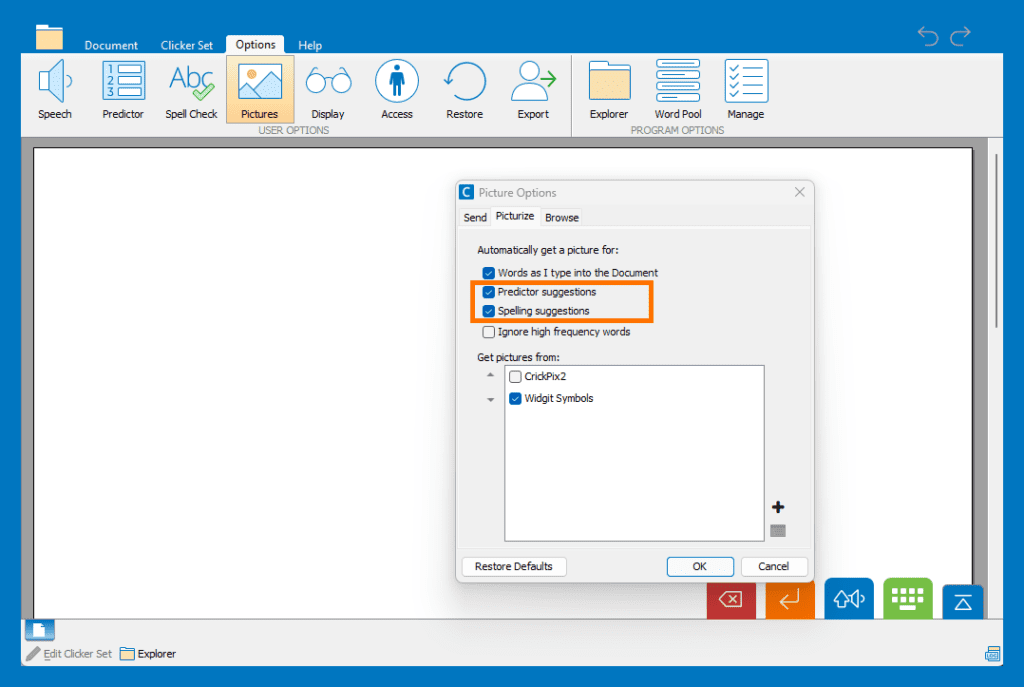
Picturize your Predictor and Spell Check suggestions:
- Go to the Options tab and click Pictures .
- Select the 'Picturize' tab.
- Turn on ‘Predictor suggestions’ and ‘Spelling suggestions’.
- Choose the image library you want to use.
- Click ‘OK’ to return to your document.
Other options
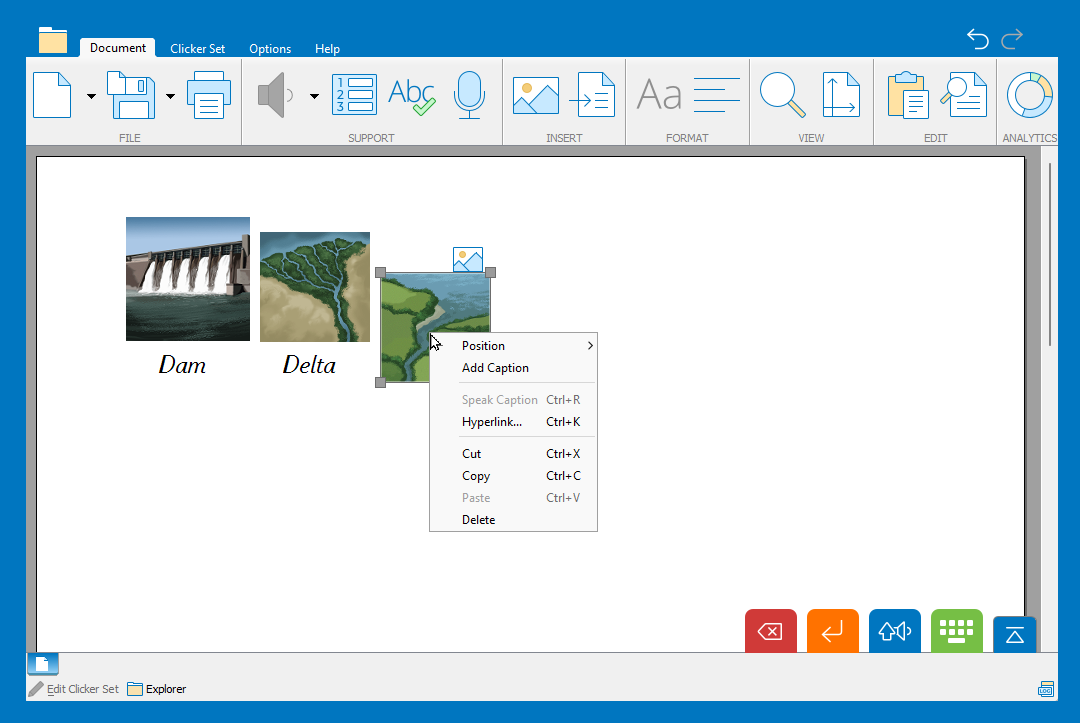
Resize pictures and add a caption or hyperlink:
- Click and drag the corner handles to resize a picture.
- Right-click a picture and choose from the menu to add a caption or a hyperlink.