What you learned: Printable Summary
Create and edit a Word Bank
This is a Printable Summary
What you learned: printable summary
Create a Word Bank
Create grids to support children writing using more difficult vocabulary:
- Click
 and select New Clicker Set.
 - Choose Word Bank.
- Click and select Add Multiple Grids, choose whether to sort the words into Topic grids or Alphabetic grids. Type or paste text into the text box to make up your Word Bank and choose whether to filter out most common English words. Click Create Grids to create your Word Bank.
- Add brackets around words to group them in a cell.
- Click Go to use the Word Bank.
 and select New Clicker Set.
 and select Add Multiple Grids, choose whether to sort the words into Topic grids or Alphabetic grids. Type or paste text into the text box to make up your Word Bank and choose whether to filter out most common English words. Click Create Grids to create your Word Bank.
Edit a Word Bank
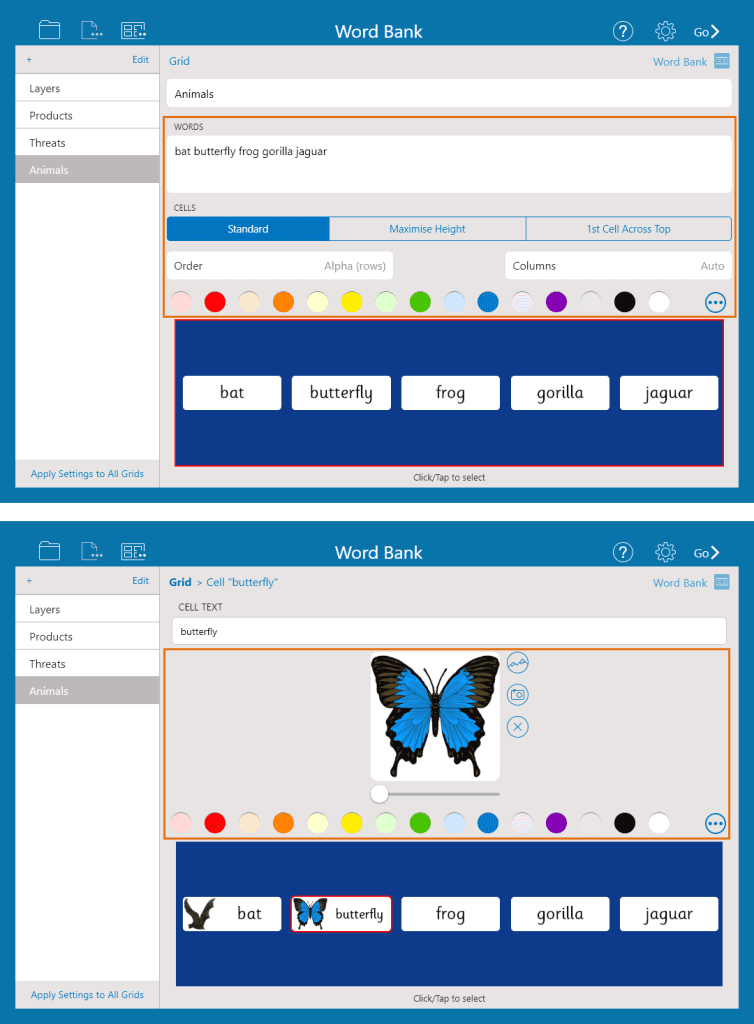
Edit a Word Bank to provide different levels of support for children when completing their writing:
- Add or delete vocabulary offered in a grid by typing in the Words text box.
- Click the Order drop down box to change the order words appear in the grid.
- Select a cell to change its appearance or add a picture.
- Click to create a new grid.
- Choose from the colour palette to change the colour of a grid.
- Click Edit then drag grids in the sidebar to reorder them.
- Click the Columns drop-down box to change the number of columns on a grid.