What you learned:
Accessibility
This is a printable summary
Display
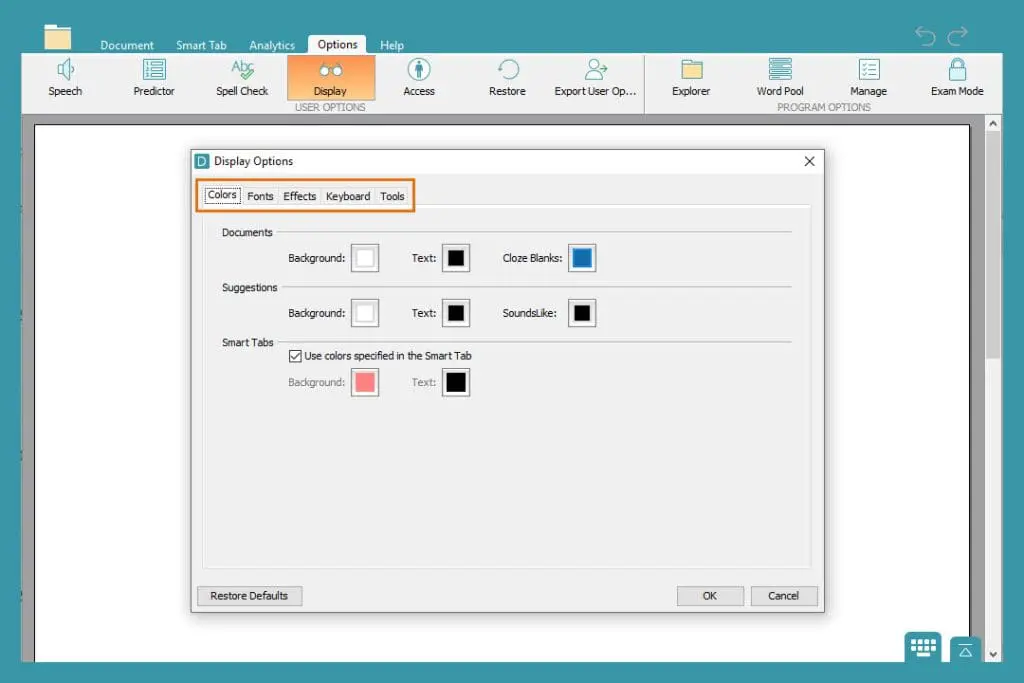
Adjust the Display settings to change DocsPlus' appearance:
- Go to the Options ribbon and select Display.
- In Colours, change the appearance of the Document, Suggestions and Smar Tabs.
- In Fonts, change the default font style and size.
- In Effects, change what happens when a cell is highlighted or selected.
- In Keyboard, change the layout of the on-screen keyboard.
- In Tools, change the size and appearance of the tools and which are offered.
Access

Adjust the Access settings to change how learners access DocsPlus:
- Go to the Options ribbon and select Access.
- In SuperKeys, choose whether to use SuperKeys and when it’s active.
- In Access Method, choose whether DocsPlus should use input from eye gaze, one or two switches, and change how these access methods behave.