What you learned:
Add pictures to the Document
This is a printable summary
Browse for a picture

Search through pictures saved on your computer:
- Go to the Document ribbon and click
 .
. - Choose Browse… from the menu.
- Navigate the file explorer to find the picture you want to use.
 .
.Take a photo
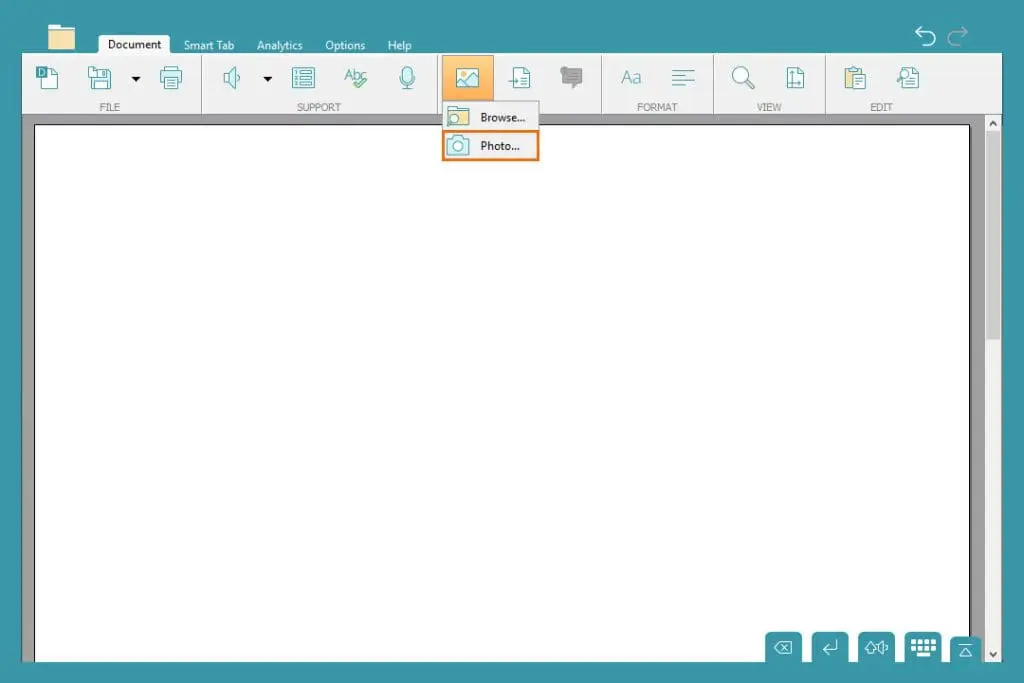
Use a webcam to take a photo:
- Go to the Document ribbon and click .
- Choose Photo… from the menu.
- Click to take a photo.
 to take a photo.
Other options
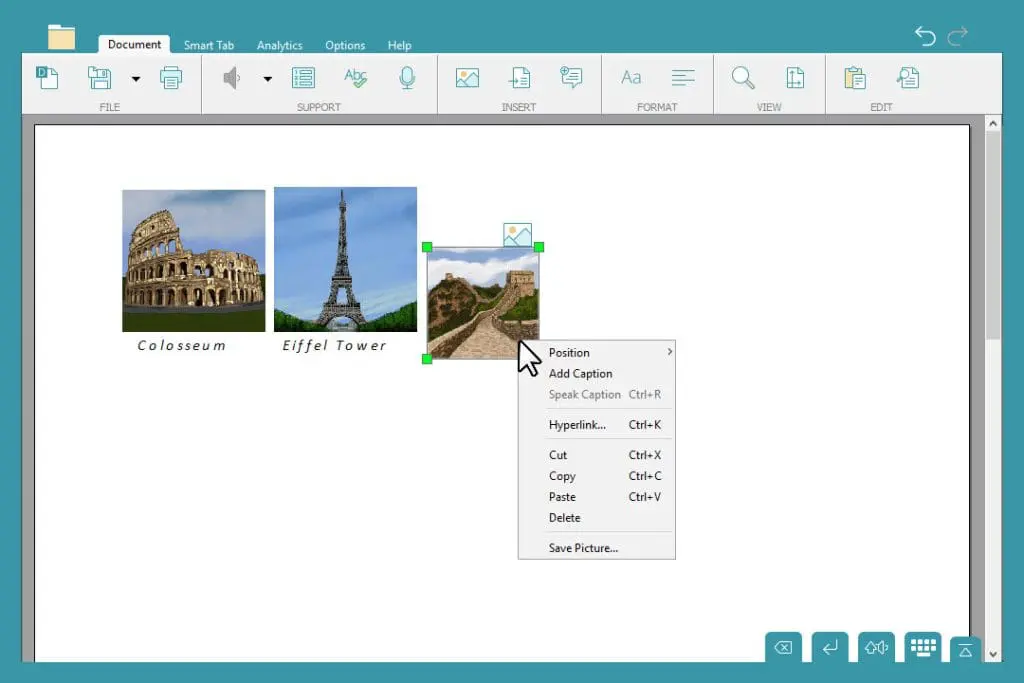
Resize pictures and add a caption or hyperlink:
- Click and drag the corner handles to resize a picture.
- Right-click a picture and choose from the menu to add a caption or a hyperlink.