What you learned: Printable Summary
Clicker Apps accessibility
This is a Printable Summary
Clicker Writer
Use the Switch Access Tool to change how learners access Clicker:
- Select
 from the toolbar to open the Switch Access Tool.
 - On the left, select your chosen access method.
- Adjust the settings to change how the access method behaves.
 from the toolbar to open the Switch Access Tool.
 Single Switch

- Choose Single Switch in the Switch Access Tool to access Clicker Writer with a single switch.
- Adjust the speed of the scan highlight by using the and buttons.
- Select the Colour circle to choose a scan highlight colour.
 and
and  buttons.
- Select Sound to turn on auditory feedback.
- In Scan Sound:
- Toggle on Beep to have a sound played when an item is scanned.
- Toggle on Speak Cell Content for the content of a cell to be read aloud as it is scanned.
- In Select Sound:
- Toggle on Beep to have a sound played when an item has been selected.
- Toggle on Beep to have a sound played when an item has been selected.
- Select Restore Defaults at the bottom of the window at any point to restore the default settings.
Two Switches
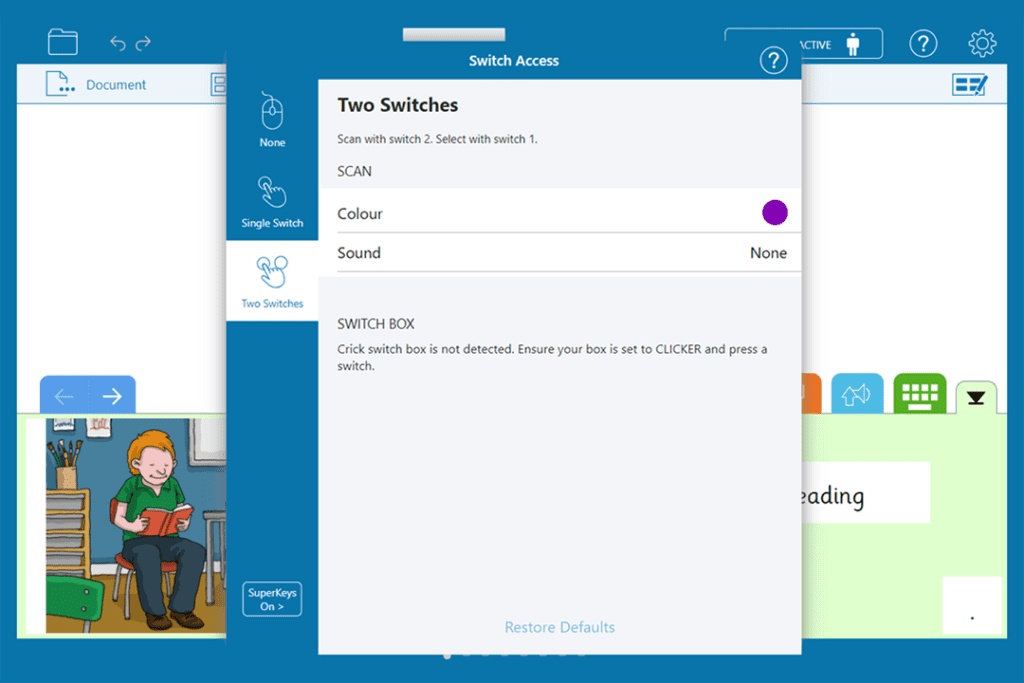
- Choose Two Switches in the Switch Access Tool to access Clicker Writer with two switches.
- Select the Colour circle to choose a scan highlight colour.

- Select Sound to turn on auditory feedback.
- In Scan Sound:
- Toggle on Beep to have a sound played when an item is scanned.
- Toggle on Speak Cell Content for the content of a cell to be read aloud as it is scanned.
- In Select Sound:
- Toggle on Beep to have a sound played when an item has been selected.
- Toggle on Beep to have a sound played when an item has been selected.
- Select Restore Defaults at the bottom of the window at any point to restore the default settings.
SuperKeys
SuperKeys helps users who struggle to target small keys by grouping them into clusters. Select a cluster to enlarge it, then choose a key.

To turn on SuperKeys:
- Select SuperKeys in the Switch Access Tool.
- Choose Keyboard to group letters in the on-screen keyboard into clusters.
- Choose Keyboard and Grids to group letters in the on-screen keyboard and cells in the Writing Grids.
Switch Access Icon
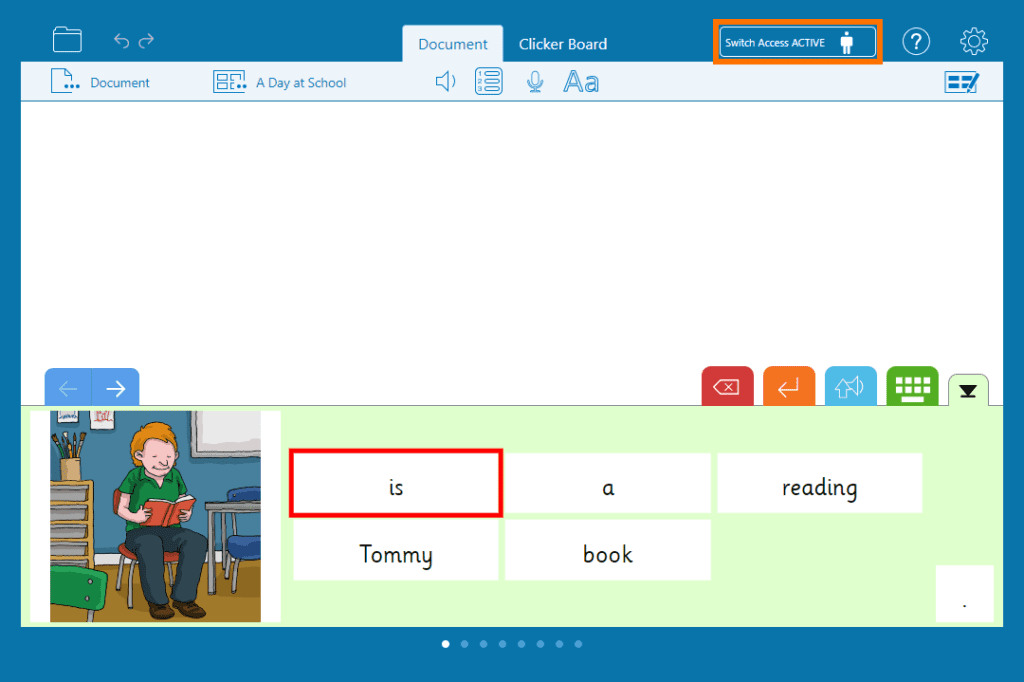
- The icon will show Active when switch access has been turned on.
- Select the icon again to reopen the Switch Access Tool.
Help Button
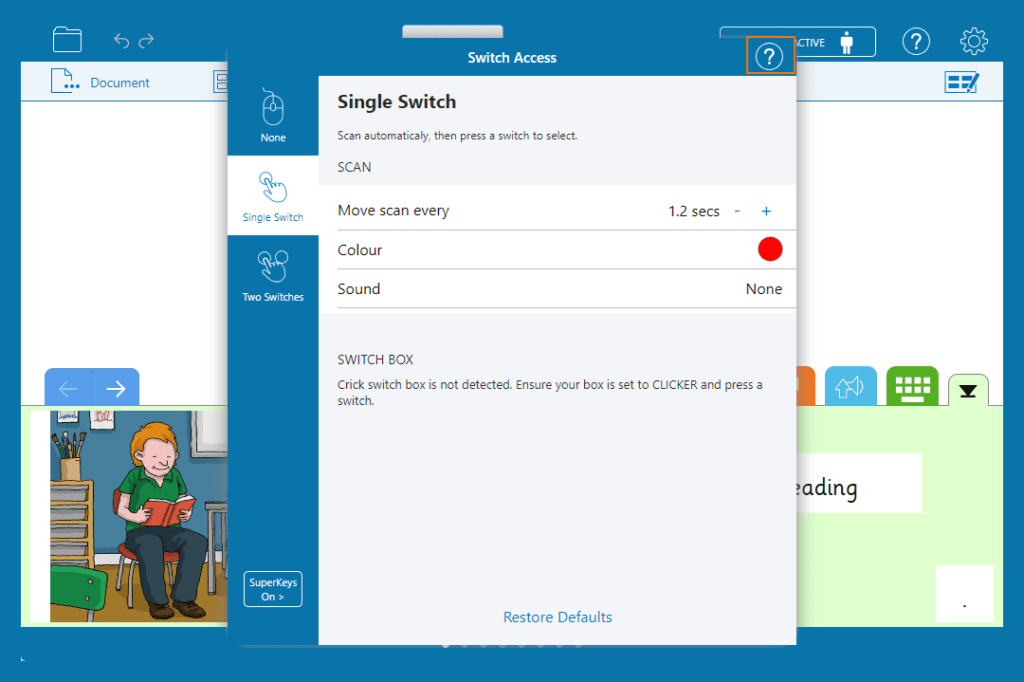
- The Help button opens the Help at the Switch Access page.
Clicker Books
Use the Switch Access Tool to change how learners access Clicker:
- Select the white bar to open the toolbar.
- Select to open the Switch Access Tool.
- On the left, select your chosen access method.
- Adjust the settings to change how the access method behaves.
 to open the Switch Access Tool.
 Single Switch
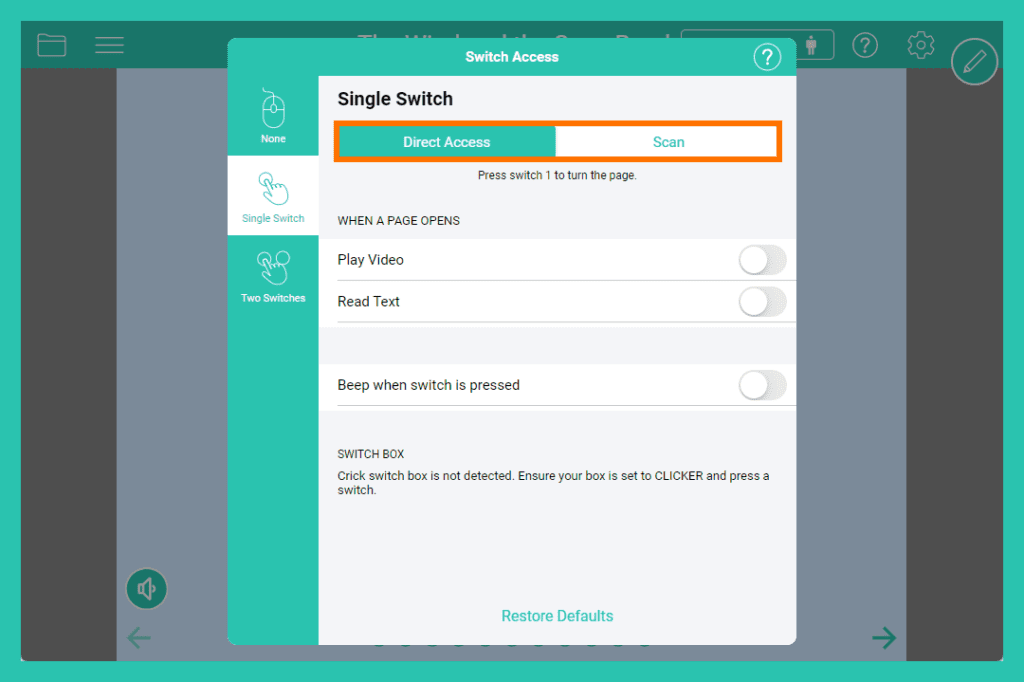
- Choose Single Switch in the Switch Access Tool to access Clicker Books with a single switch.
- Choose from:
- Direct Access - press the switch to turn the page.
- Scan - automatically scan objects on the page and then use the switch to select.
Direct Access
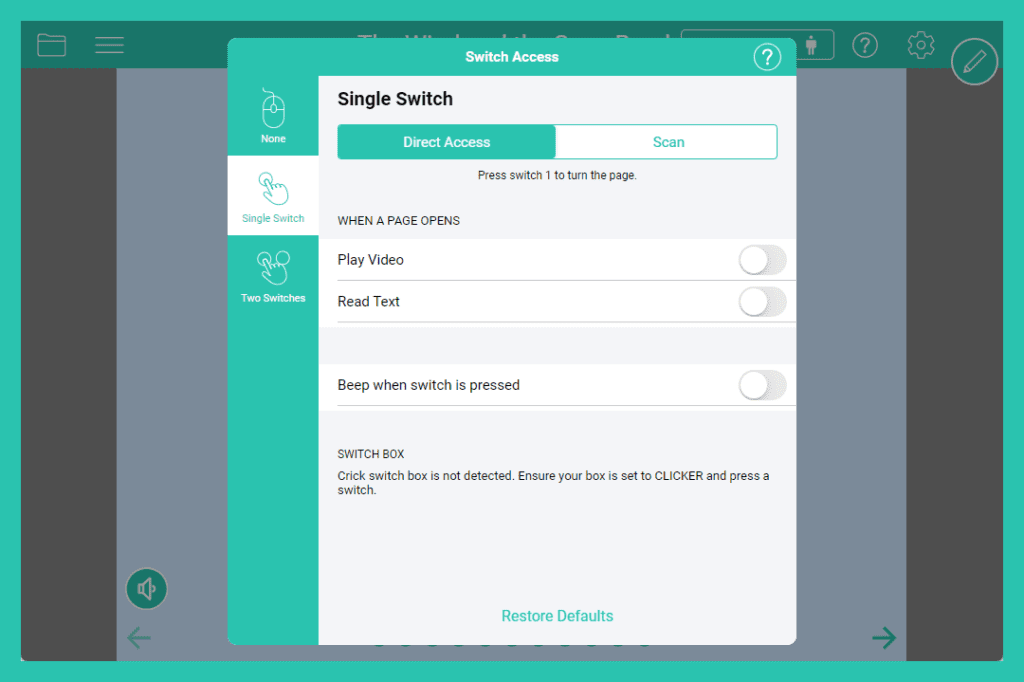
- Choose an action for When a page opens:
- Toggle on Play Video to play any video on the page.
- Toggle on Read Text to read out any text on the page.
- Toggle on Beep when switch is pressed for auditory feedback when the switch is pressed.
Scan
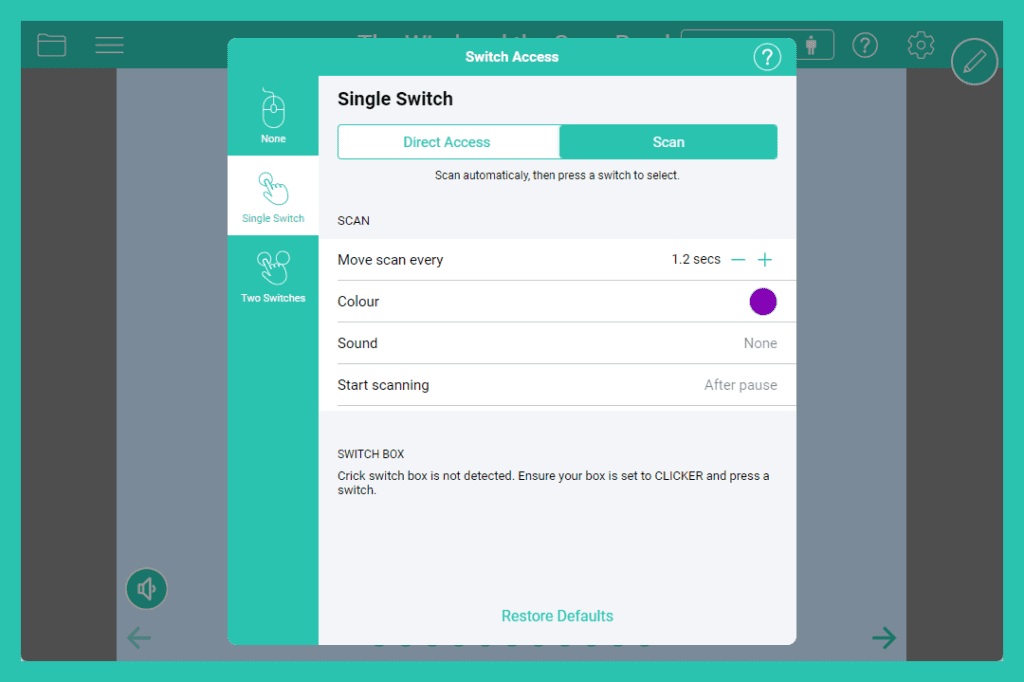
- Adjust the speed of the scan highlight by using the and buttons.
- Select the Colour circle to choose a scan highlight colour.
 and
and  buttons.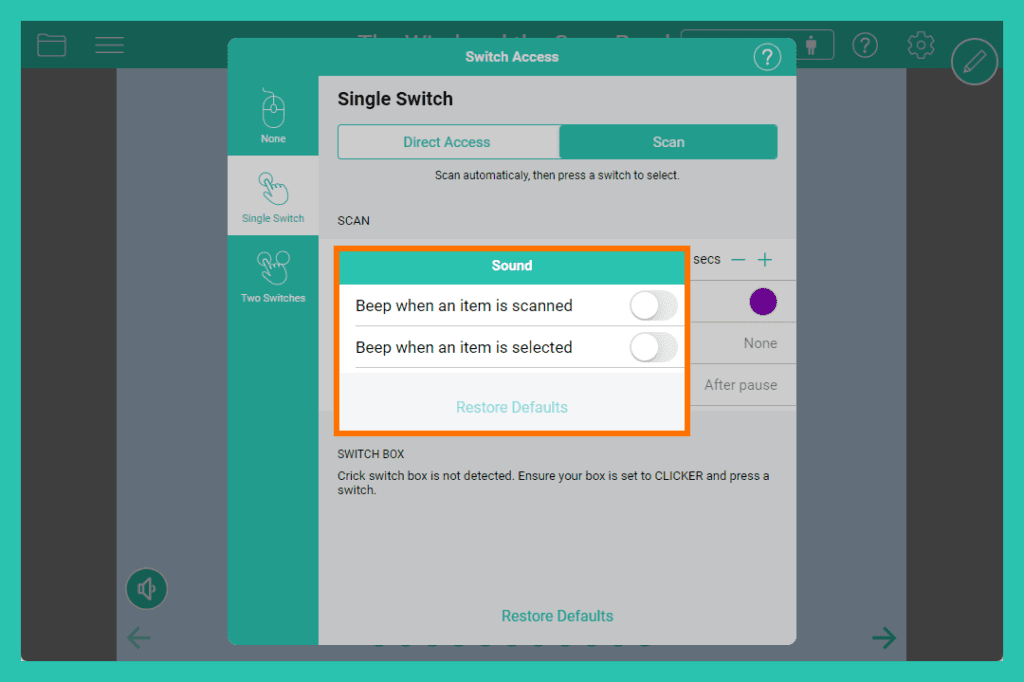
- Open Sound to toggle on auditory feedback when items are scanned or selected.
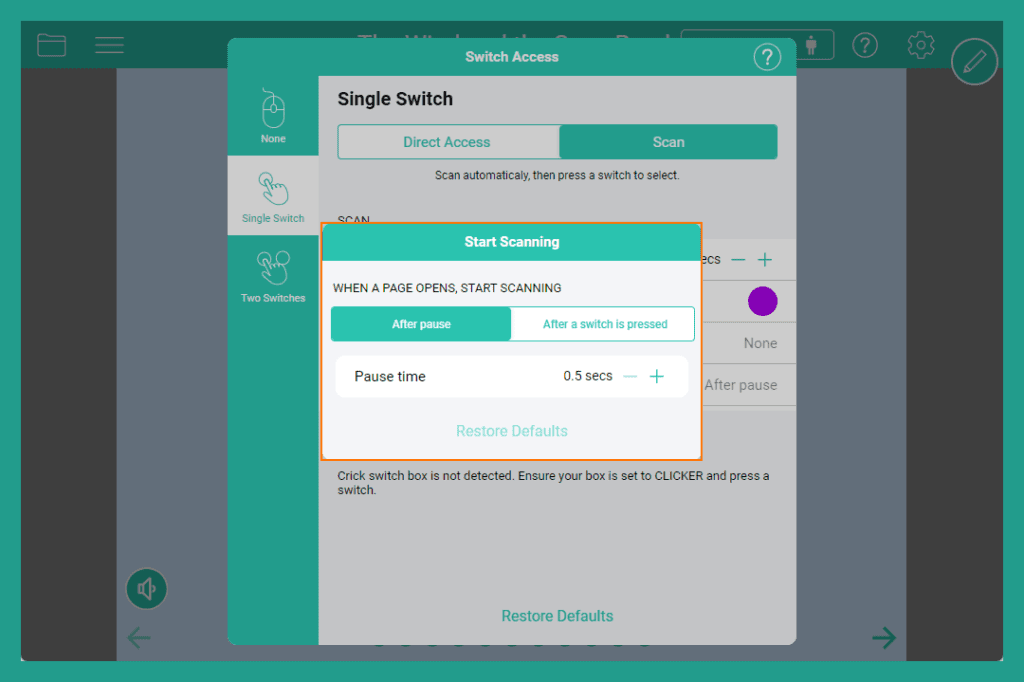
- In Start scanning choose when scanning begins:
- After pause:
- Adjust the pause time using the and buttons.
- Adjust the pause time using the
- After a switch is pressed.
- After pause:
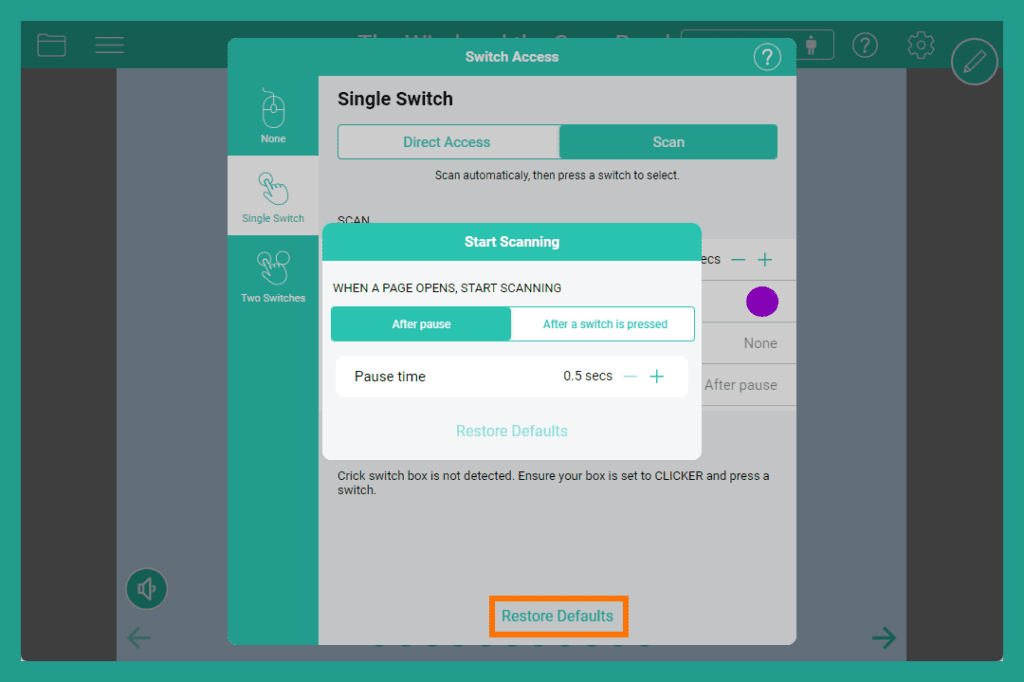
- Select Restore Defaults at the bottom of the window at any point to restore the default settings.
Two Switches

- Choose Two Switches in the Switch Access Tool to access Clicker Books with two switches.
- Choose from:
- Direct Access - press the switch to turn the page.
- Scan - scan objects on a page with switch 2 and select with switch 1.
Direct Access
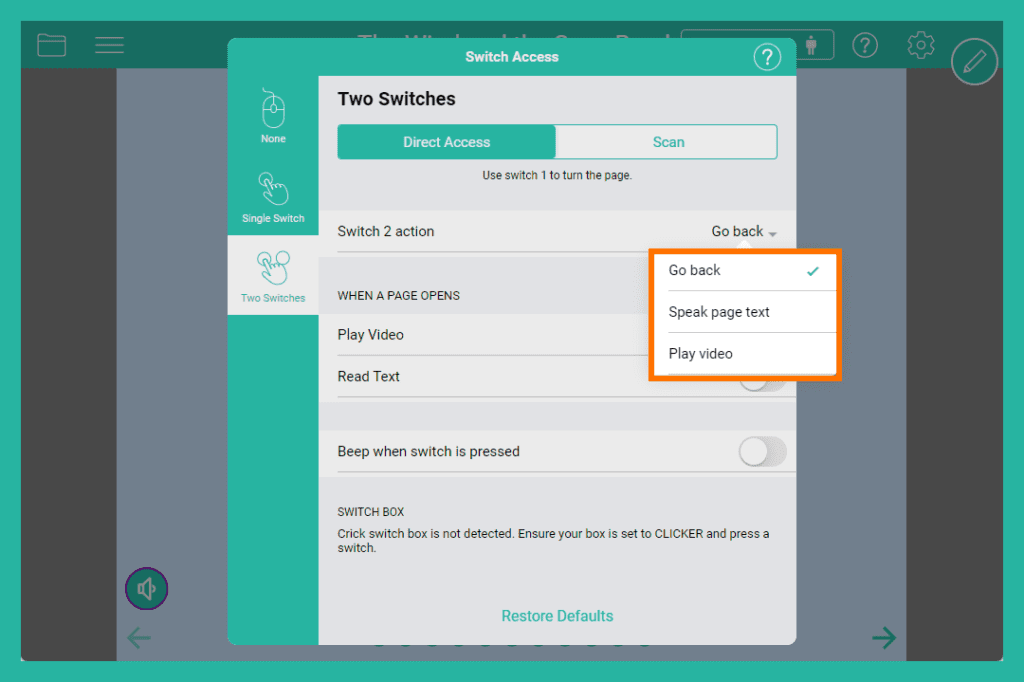
- Go to Switch 2 action to choose from:
- Go back – return to the previous page.
- Speak page text - text on the page is read out.
- Play video - video on the page is played.
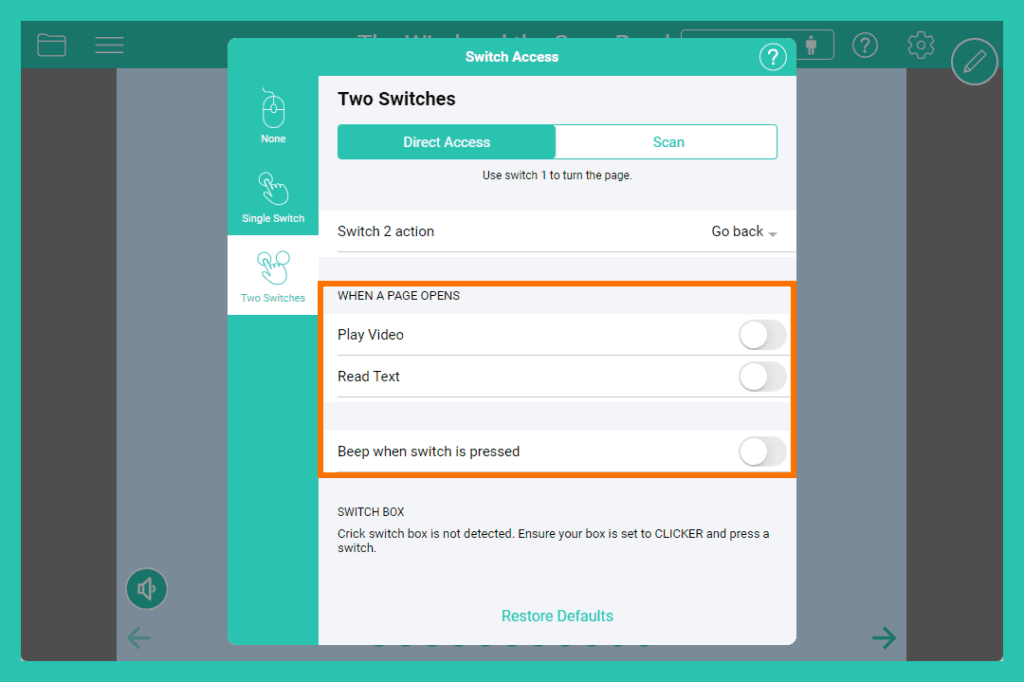
- Choose an action for When a page opens:
- Toggle on Play Video to play any video on the page.
- Toggle on Read Text to read out any text on the page.
- Toggle on Beep when switch is pressed for auditory feedback when the switch is pressed.
Scan
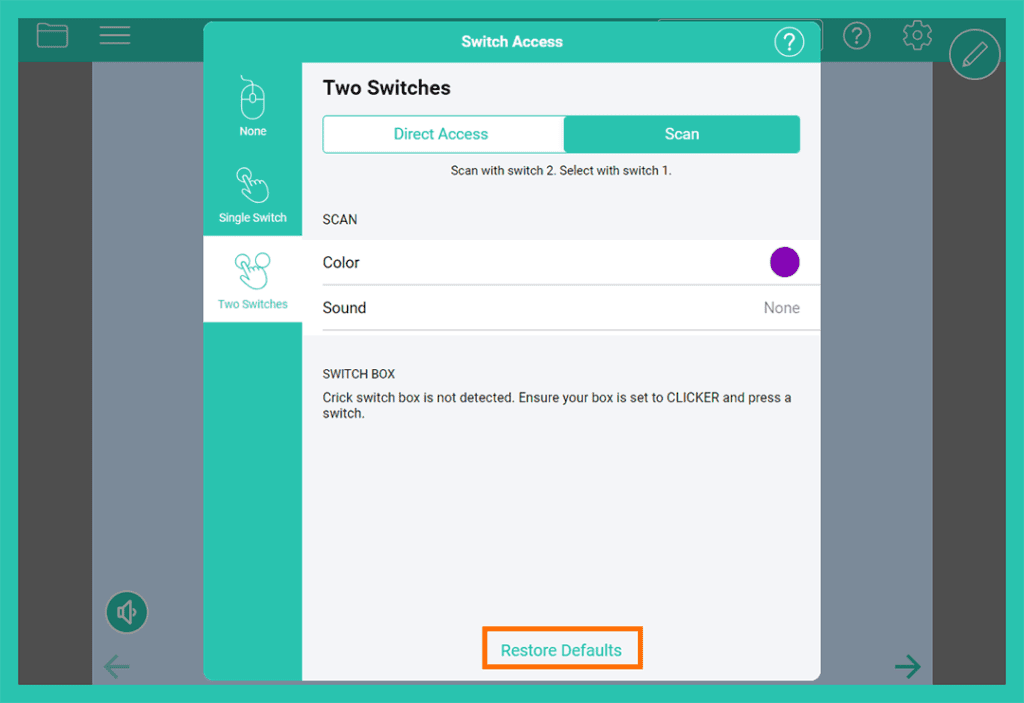
- Select the Colour circle to choose a scan highlight colour.
- Open Sound to toggle on auditory feedback when items are scanned or selected.
- Select Restore Defaults at the bottom of the window at any point to restore the default settings.
Switch Access Icon

- The icon will show Active when switch access has been turned on.
- Select the icon again to reopen the Switch Access Tool.
Help Button

- The Help button opens the Help at the Switch Access page.
Clicker Talk
Use the Switch Access Tool to change how learners access Clicker:
- To view the access options, select the white bar to open the tool bar.
- Select to open the Switch Access Tool.
- On the left, select your chosen access method.
- Adjust the settings to change how the access method behaves.
 to open the Switch Access Tool.
 Single Switch
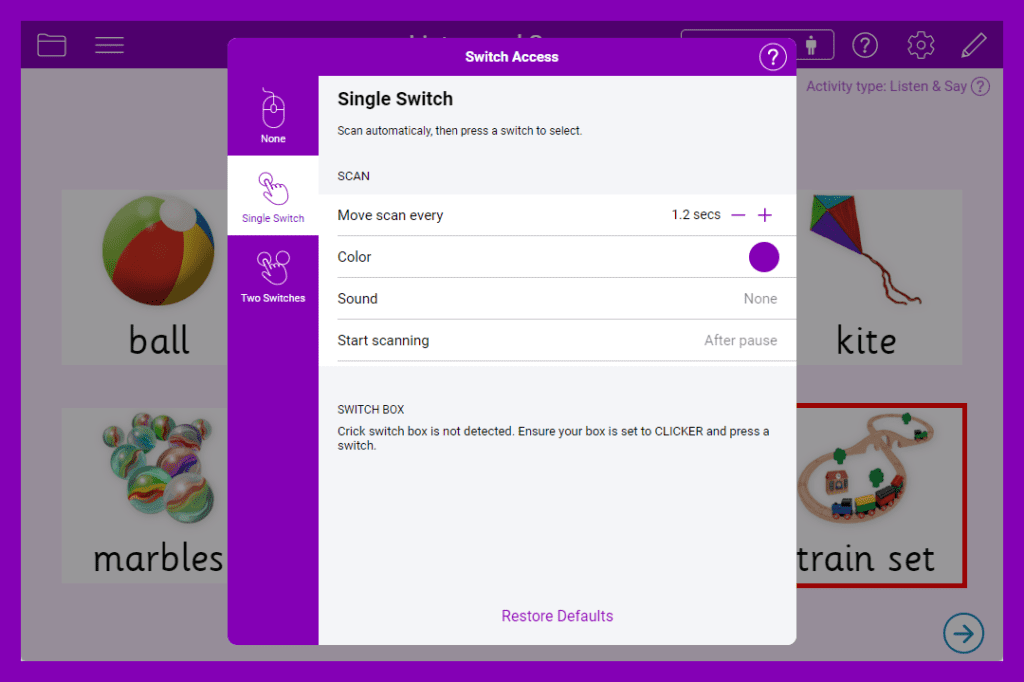
- Choose Single Switch in the Switch Access Tool to access Clicker Talk with a single switch.
- Adjust the speed of the scan highlight by using the and buttons.
- Select the Colour circle to choose a scan highlight colour.
 and
and  buttons.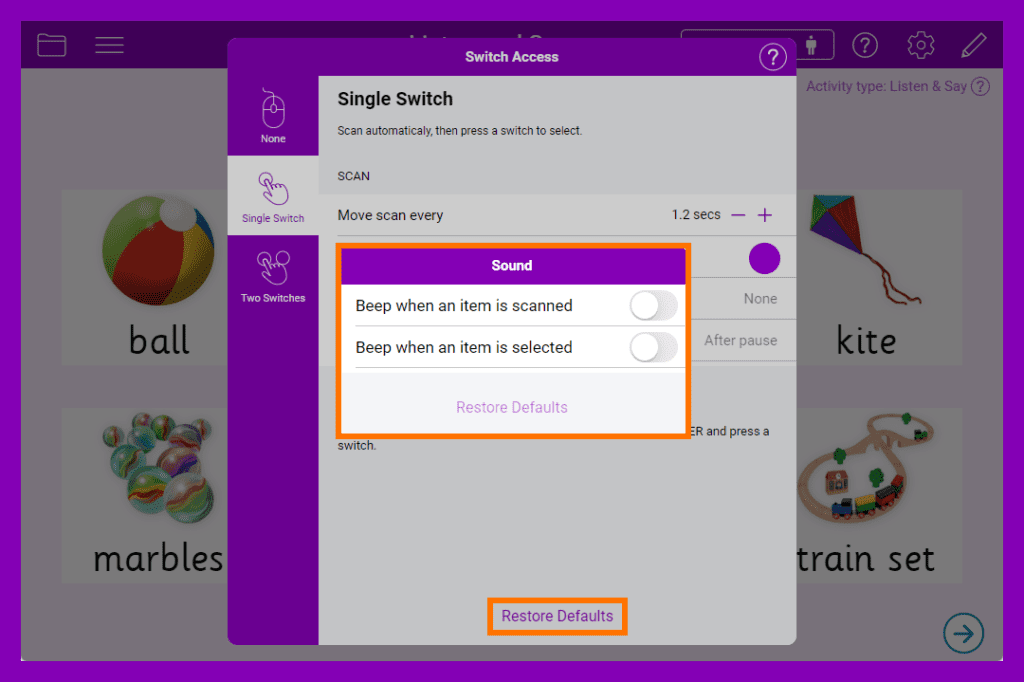
- Open Sound to toggle on auditory feedback for when an item is scanned or selected.
- Select Restore Defaults at the bottom of the window at any point to restore the default settings.
Two Switches

- Choose Two Switches in the Switch Access Tool to access Clicker Talk with two switches.
- Select the Colour circle to choose a scan highlight colour.
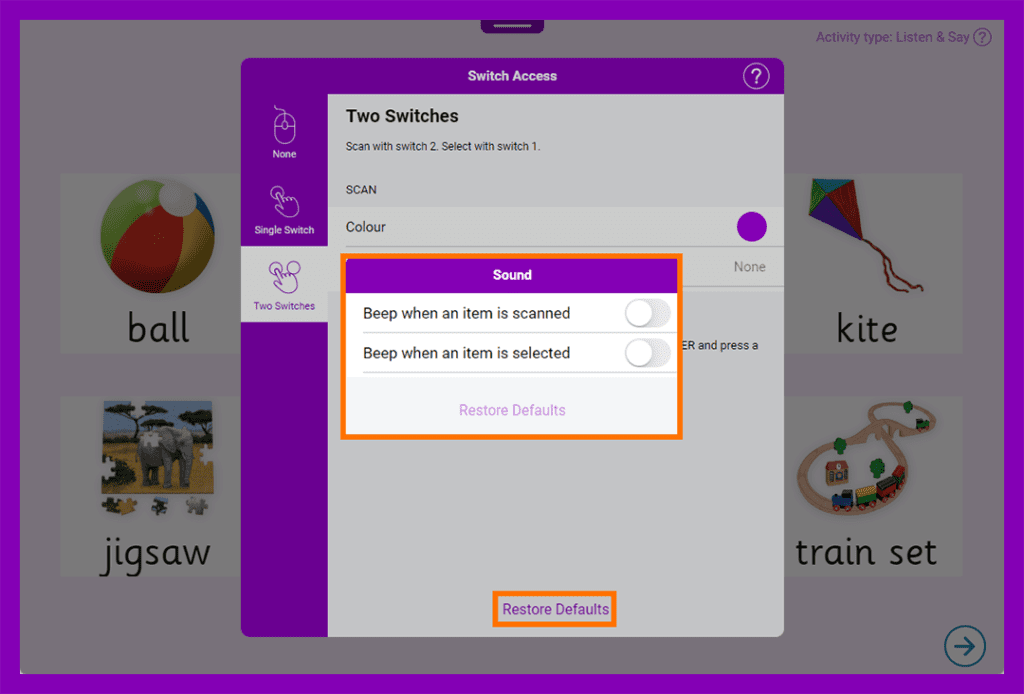
- Open Sound to toggle on auditory feedback for when an item is scanned or selected.
- Select Restore Defaults at the bottom of the window at any point to restore the default settings.
Switch Access Icon
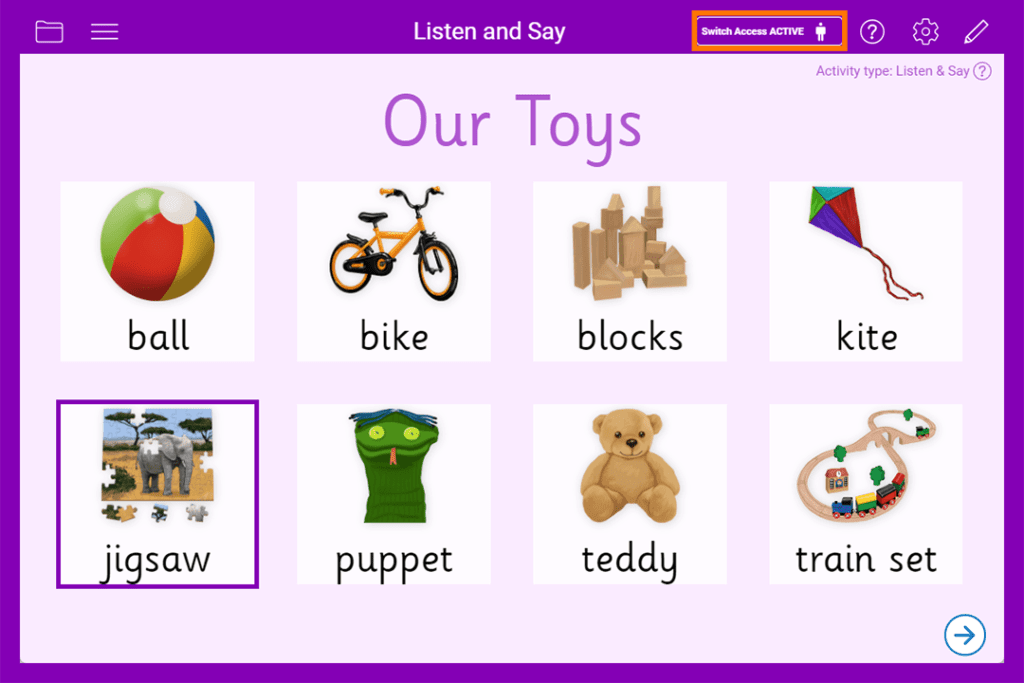
- The icon will show Active when switch access has been turned on.
- Select the icon again to reopen the Switch Access Tool.
Help Button

- The Help button opens the Help at the Switch Access page.